Last updated on 19 March 2026
Ergonomic keyboards have come a long way from the chunky, awkward designs of the early 2000s. Whether you’re a developer clocking ten-hour days, an office worker looking to get ahead of wrist strain, or someone already dealing with RSI, the right keyboard can make a genuine difference to your comfort and long-term health. But with a market full of options ranging from $70 wave-shaped boards to $400 fully split mechanical keyboards, knowing where to start isn’t easy. In this review, we break down three of the best ergonomic keyboards available today covering everything from build quality and typing feel to fit, customizability, and value, so that you can find the right one for your needs.
Best Overall
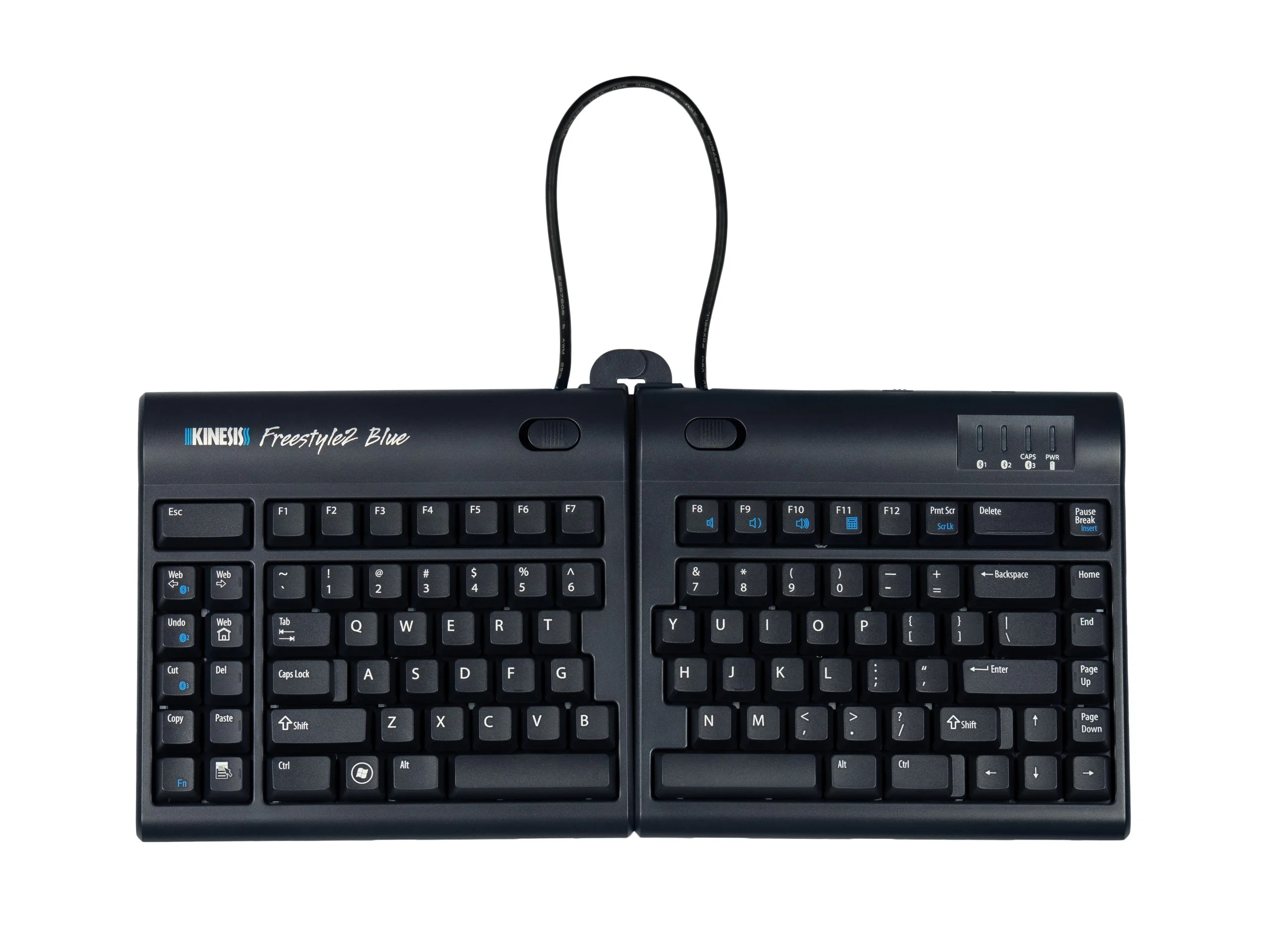
Kinesis Freestyle2
Covers the essentials well with a fully split design and optional tenting tackling the most important ergonomic fundamentals at a reasonable price. It’s a solid entry point into ergonomic typing for most users.
Premium Pick
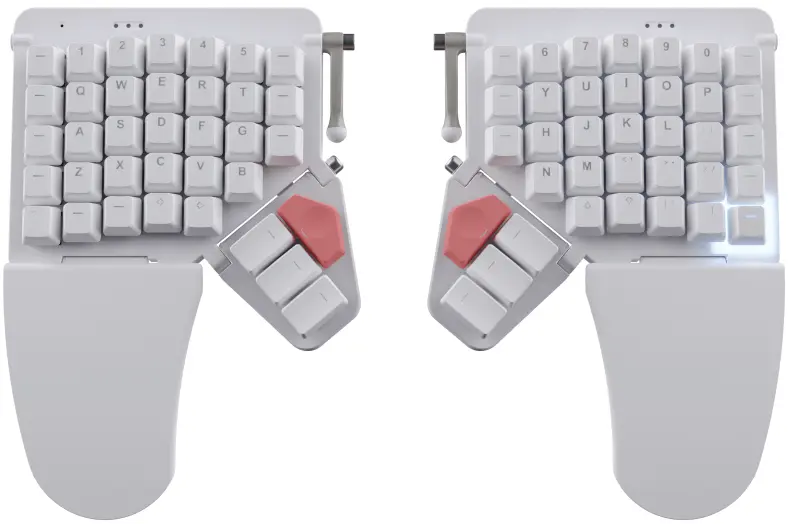
ZSA Moonlander
The most complete ergonomic keyboard available, excelling across virtually every criteria. It’s mechanical switch options and deep firmware customization make it a long-term investment for power users who spend long hours at the keyboard
Best Budget
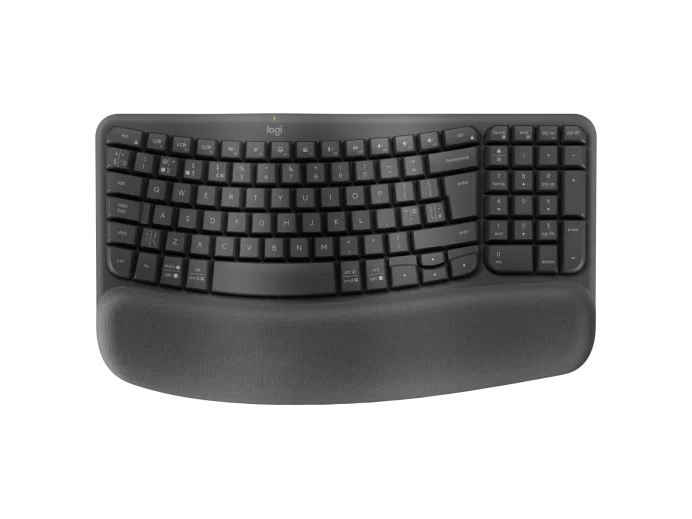
Logitech Wave Keys
A great choice for ergonomic prevention at an accessible price, but it lacks features that more serious ergonomic keyboards offer. Perfect for beginners, but those with severe wrist or RSI issues may need a more advanced solution.
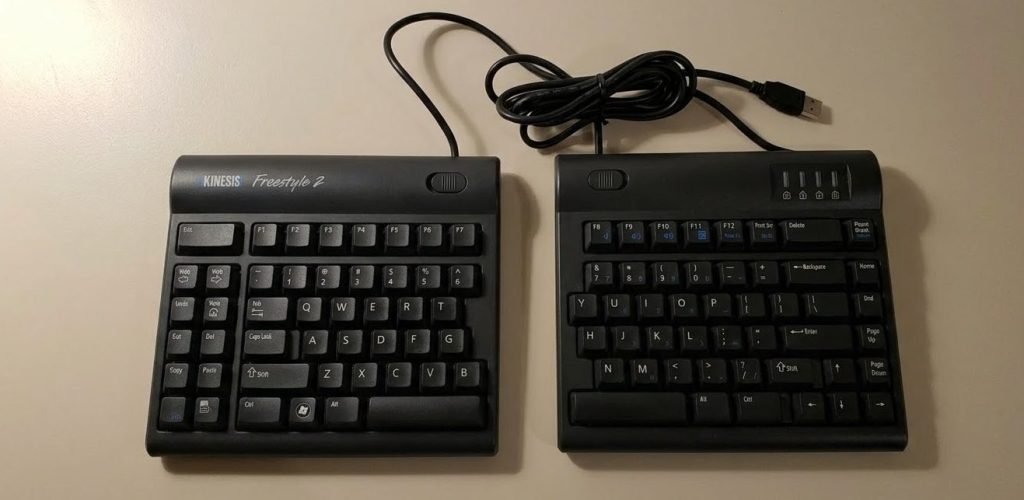
1. Kinesis Freestyle2
Best Overall
Specifications:
Type: Fully split
Connection: Wired USB-A
Programmable: No Size: Full-size
Tenting Angles: 5°/10°/15° with VIP3 Slope: Flat
Wrist Rest: Sold separately
Operating System: Windows, Mac, Linux
Pros:
+ Fully split design
+ Easy transition from standard keyboard
+ Good entry into ergonomic typing
Cons:
– No built-in tenting
– No numpad included
– Very limited customizability
The Kinesis Freestyle2 is a wired, fully split ergonomic keyboard designed to tackle the most common sources of typing strain: shoulder tension, wrist pronation, and ulnar deviation — and for everyday office use, it delivers on that promise without a steep learning curve or a premium price tag.
The split design is the star of the show: separating the two halves lets you position each side at a natural shoulder-width distance, immediately reducing the hunched, angled posture that standard keyboards force on you. Add the optional VIP3 tenting accessory and you get a noticeably more neutral wrist angle. It takes a week or two for your muscles to fully adapt, but most users find the transition surprisingly smooth compared to more radical ergonomic layouts. A nice bonus is the ability to place your mouse between the two halves, keeping both arms in a near-neutral position, a small detail that makes a real difference for anyone with shoulder or upper back tension.
Where the Freestyle2 falls short is in the lack of customizability. There are no programmable layers, no mechanical switch options, no wireless connectivity, and no backlighting. You’re getting a fixed experience with little room to tailor it to your needs. This matters most to power users — developers, writers, or anyone who has spent time with a more advanced keyboard will quickly notice the ceiling. The average office typist is unlikely to miss these features, but if you’re used to remapping keys, building custom layers for shortcuts, or dialling in the perfect switch feel, the Freestyle2 will feel limiting fairly fast.
Fit varies by body type. Users with broader shoulders may find the standard 9 inch cable separation a little tight, though Kinesis does offer a 20 inch separation version for larger frames. For long sessions, users who previously suffered from wrist and hand pain consistently report meaningful improvement , though those with severe RSI or who need more aggressive ergonomic features like concave key wells or columnar layouts will likely outgrow it quickly.
2. ZSA Moonlander
Premium Pick
Specifications:
Type: Fully split
Connection: Wired USB-C Programmable: Yes
Size: 17 x 25 x 3 cm (per half)
Tenting Angles: 10°/15° Slope: Flat
Wrist Rest: Included
Operating System: Windows, Mac, Linux
Pros:
+ Fully programmable with on-board storage
+ Compact design
+ Highly adjustable split positioning
Cons:
– Steep learning curve (2-4 weeks)
– No wireless option
– Expensive
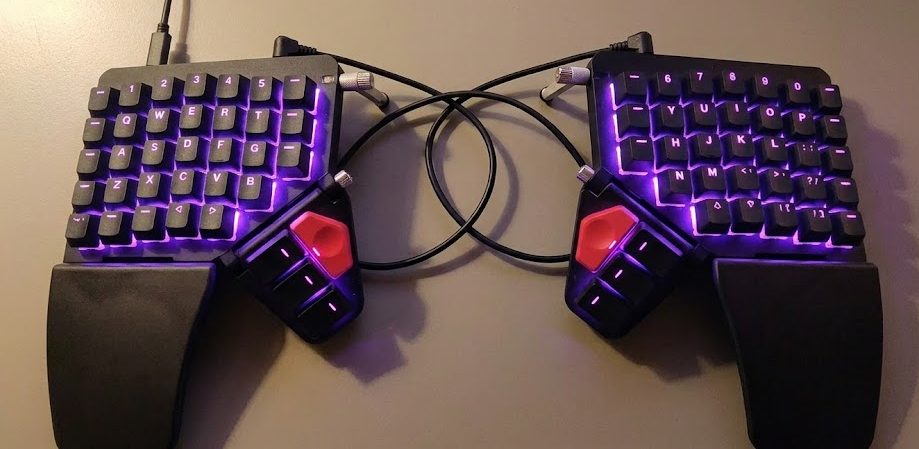
The ZSA Moonlander is a fully split, highly customizable ergonomic mechanical keyboard widely regarded as one of the most advanced options on the market. It’s built for users who spend long hours at a keyboard and want the most complete ergonomic solution available but it demands a real time investment and comes with a price tag to match.
The standout feature beyond the ergonomics is its incredible programmability. Programmable layers mean a single key can serve multiple functions depending on which layer you’re on, dramatically reducing hand movement during long typing sessions. Hot-swappable switches let you experiment with different switch types across different key positions, so you can dial in exactly the feel you want without buying a new keyboard. Changes are also stored at the firmware level, so you can take it to any computer and have it function exactly the same without installing software. For users with serious wrist or RSI issues, the results can be dramatic, many report going from chronic daily pain to no pain at all after making the switch.
Where the Moonlander falls short is in a few areas that are easy to overlook at this price point. There’s no wireless option, and the wrist rests are plastic rather than padded, which some users may find insufficient for long sessions The tenting system, while adjustable, can be fiddly to configure, and getting the best ergonomic setup often means buying ZSA’s premium metal tenting accessory, adding over $100 to an already expensive purchase.
Above all, the learning curve is real — even after ten days of use, most people are still well short of their normal typing speed, and a realistic adaptation period of two to four weeks should be expected before things fully click. Also for gaming, some keys aren’t where you’d expect them by default, so FPS players in particular will need to spend time remapping before it feels natural.
3. Logitech Wave Keys
Best Budget
Specifications:
Type: Single
Connection: Wireless Bluetooth Programmable: No
Size: Full-size with numpad
Tenting Angles: Fixed +4°
Slope: Fixed +4° Wrist Rest: Included
Operating System: Windows, Mac, Linux
Pros:
+ Built-in memory foam wrist rest
+ Wireless with multi-device support (up to 3 devices)
+ Zero learning curve, feels like a standard keyboard
Cons:
– Not fully split, less ergonomic benefit than split keyboards
– No rechargeable option, runs on AAA batteries
– No adjustability, tenting and slope are fixed
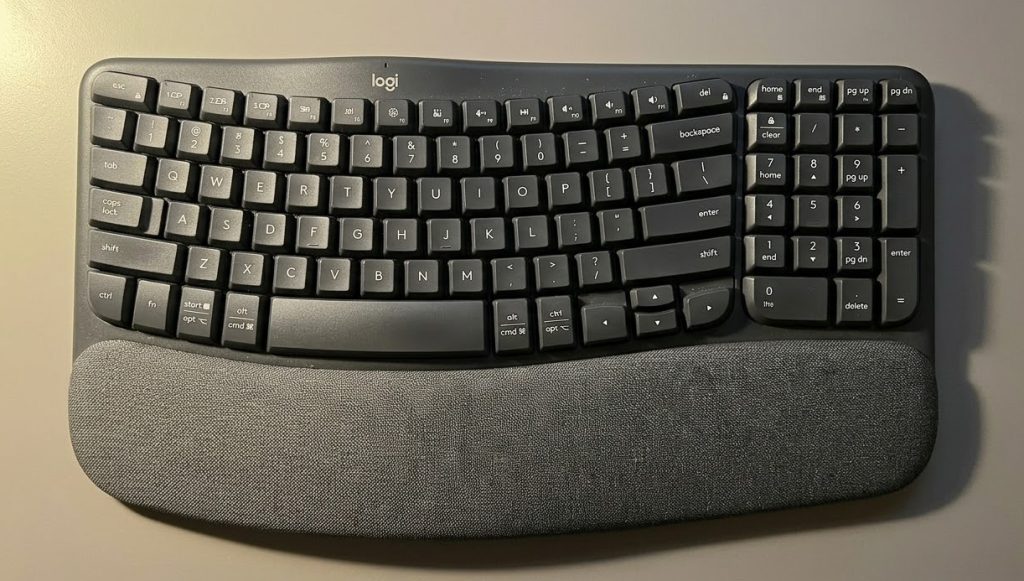
The Logitech Wave Keys is a wireless ergonomic keyboard, aimed squarely at everyday office users who want a more comfortable typing experience without committing to the steep learning curve of a fully split keyboard. Its wave-shaped key rows and gently tented design naturally guide you into a better typing posture, and the transition feels immediate and intuitive rather than jarring.
The typing experience is a genuine highlight. The keys require notably less force to actuate than many competitors, making long typing sessions feel strain-free, and the overall experience is quite enjoyable. The wave-like design works well for setting your hands and wrists into a more neutral position, and the integrated memory foam wrist rest provides real support during extended use. Connectivity is also a strong suit: you can pair it with up to three devices simultaneously and switch between them almost instantly, making it well suited for multi-device setups.
Where the Wave Keys falls short is in its hardware limitations. It runs on AAA batteries rather than a rechargeable battery, has no backlighting, and no USB-C. It also has none of the split design, adjustable tenting, or columnar key layouts that more serious ergonomic keyboards offer, meaning it functions more as ergonomic prevention than a solution for existing strain issues.
The design might take a few days to get used to, but once you’re comfortable, most users find it natural and relaxing to type on for long periods. However, those with existing RSI or wrist problems will likely find it insufficient – the Wave Keys is best understood as a keyboard for people who have not yet experienced RSI and want to keep it that way.
Buyer’s Guide
Split vs Non-Split keyboards, which is better?
Split keyboards divide the layout into two halves so each hand can rest at a more natural, shoulder-width position. This reduces wrist pronation and inward arm rotation, which over time lowers the risk of repetitive strain injuries like carpal tunnel. Non-split (standard) keyboards keep everything in one unit, which means zero adjustment period and easy portability. The tradeoff is that your hands are forced closer together, which can put strain on wrists and shoulders during long typing sessions, though many people use them for years without issues.
The choice really comes down to your priorities. If you type heavily or have existing strain issues, then a split board is worth the learning curve. If you value simplicity, portability, or just don’t have any discomfort, a standard keyboard will do the job fine.
How important are the keyboard’s Tenting angles and Slope?
Tenting refers to raising the inner edges of each keyboard half so your hands angle inward, similar to a handshake position. This directly reduces forearm pronation (the inward rotation of your forearms when typing flat), which is one of the main contributors to wrist and arm strain. The keyboard slope refers to the front-to-back angle of the keyboard. Most standard keyboards tilt upward toward the back, which forces your wrists into upward extension. A flat or slightly negative slope (tilting away from you) keeps wrists in a more neutral, relaxed position and is often underrated as an ergonomic adjustment.
Both matter, especially if you have existing strain or RSI. Tenting is probably the bigger factor of the two since it addresses a more fundamental postural issue, but slope is worth paying attention to as well. That said, neither is a magic fix, they work best as part of a broader setup that includes proper desk height, chair position, and regular breaks. If you do experiment with tenting, start with a moderate angle and adjust gradually rather than jumping to an extreme position, as too much too fast can cause its own fatigue.
Are programmable keyboard layouts worth the learning curve?
Programmable keyboards let you remap any key, create custom layers (like when using the Shift button, but for entire alternate key layouts), and assign complex actions or macros to a single keystroke. The learning curve is real, setting up and iterating on a layout takes time and some comfort with configuration tools or firmware.
Whether it’s worth it depends on how much you type and how willing you are to invest upfront. For heavy users, the payoff can be significant: you can bring frequently used keys closer to your resting hand position, reducing finger travel and strain. This is especially valuable on compact split keyboards where keys are limited. For people with RSI, being able to move problem keys (like pinky-heavy shortcuts) to stronger fingers can make a meaningful difference.
For casual users, the investment probably isn’t necessary. But if you’re already going down the ergonomic rabbit hole then programmable layouts are a natural next step that compounds the benefits of everything else.
Leave a Reply